
Why group groceries by aisle?
A shopping list written in the order ideas come to mind rarely matches the order you walk through a store. When milk is followed by bananas, cleaning supplies and bread, you spend time scanning the list again—or heading back to a section you already passed.
Grouping products into familiar departments such as produce, bakery, dairy, meat and household supplies makes a long list easier to scan. You don't need a perfect route. You just need the items for each department together.
Example: six items become three store sections
Before: the text message
2 litres of milk
Apples
Baguette
Carrots
Yogurt
Bananas
After: sorted by aisle
🥕 Produce
☐ Apples
☐ Carrots
☐ Bananas

🥖 Bakery
☐ Baguette

🥛 Dairy & eggs
☐ 2 litres of milk
☐ Yogurt
Try copying the example or replace the items with what your family actually needs this week.
Three steps to an organized shopping list
- Copy the list exactly as it arrived. There's no reason to re-enter every product individually. Keep useful quantities, like "2 litres of milk".
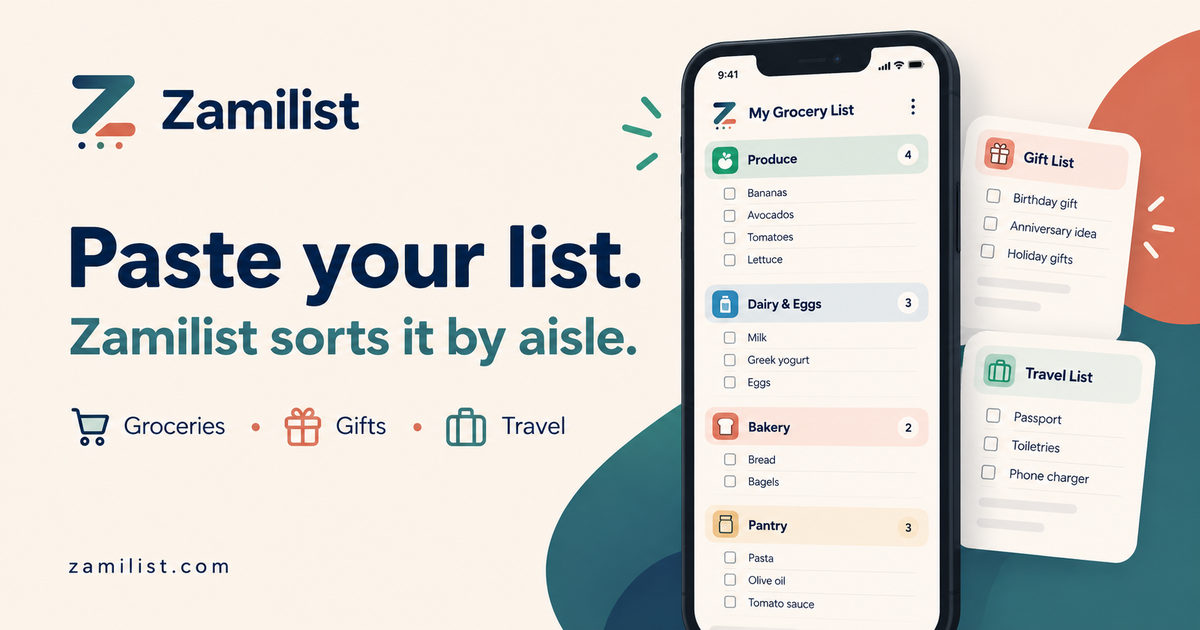
- Paste all items at once. Open Zamilist, make a grocery list and paste the lines. The app suggests store departments automatically.
- Review the categories and check items off. Auto-sorting is a starting point, not a guarantee. If an item belongs elsewhere at your store, change the aisle. Zamilist can remember your correction for later.
Four tips that make shopping smoother
Use one product per line
"Milk, bread, eggs" in one line is harder to manage than three separate lines. That is especially useful when someone else may check items off.
Keep quantities understandable
Write "2 bags of potatoes" when the amount matters, rather than relying on someone else to guess.
Match the aisles to your store
Not every store has the same layout. Adjust the aisle order to match your shopping routine instead of trying to memorize someone else's layout.
Maintain one shared list
Multiple text-message versions become confusing fast. A shared grocery list helps family members contribute to the same list.
Frequently asked questions
Do I need to install an app?
No. Zamilist works in your phone or desktop browser, without a separate download.
Is automatic sorting always correct?
No. Some item names are ambiguous, and store layouts vary. You can review and adjust the suggestions.
Is this free?
Creating lists and sorting groceries by aisle are available for free. Zamilist Plus adds optional advanced shortcuts.
Ready to try it?
Start with your own items. You can use the essential features for free.
Make my grocery list →Planning gifts as well? Read the other guide →